Pages
Build and edit the pages of your public website, including your home page.
How to view all pages
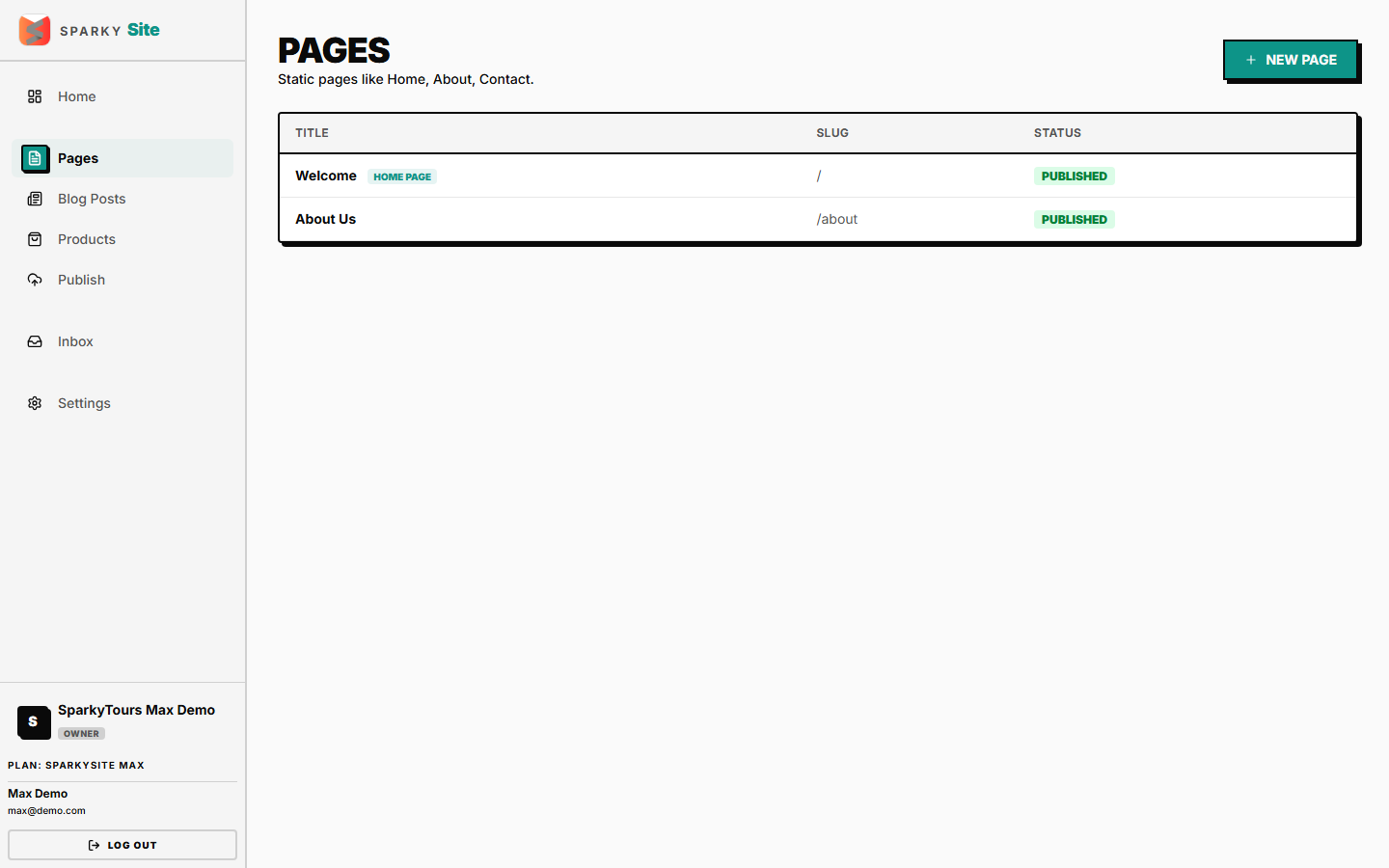
Open Pages from the sidebar. You'll see every page, including your home page (marked as such).
How to create a page
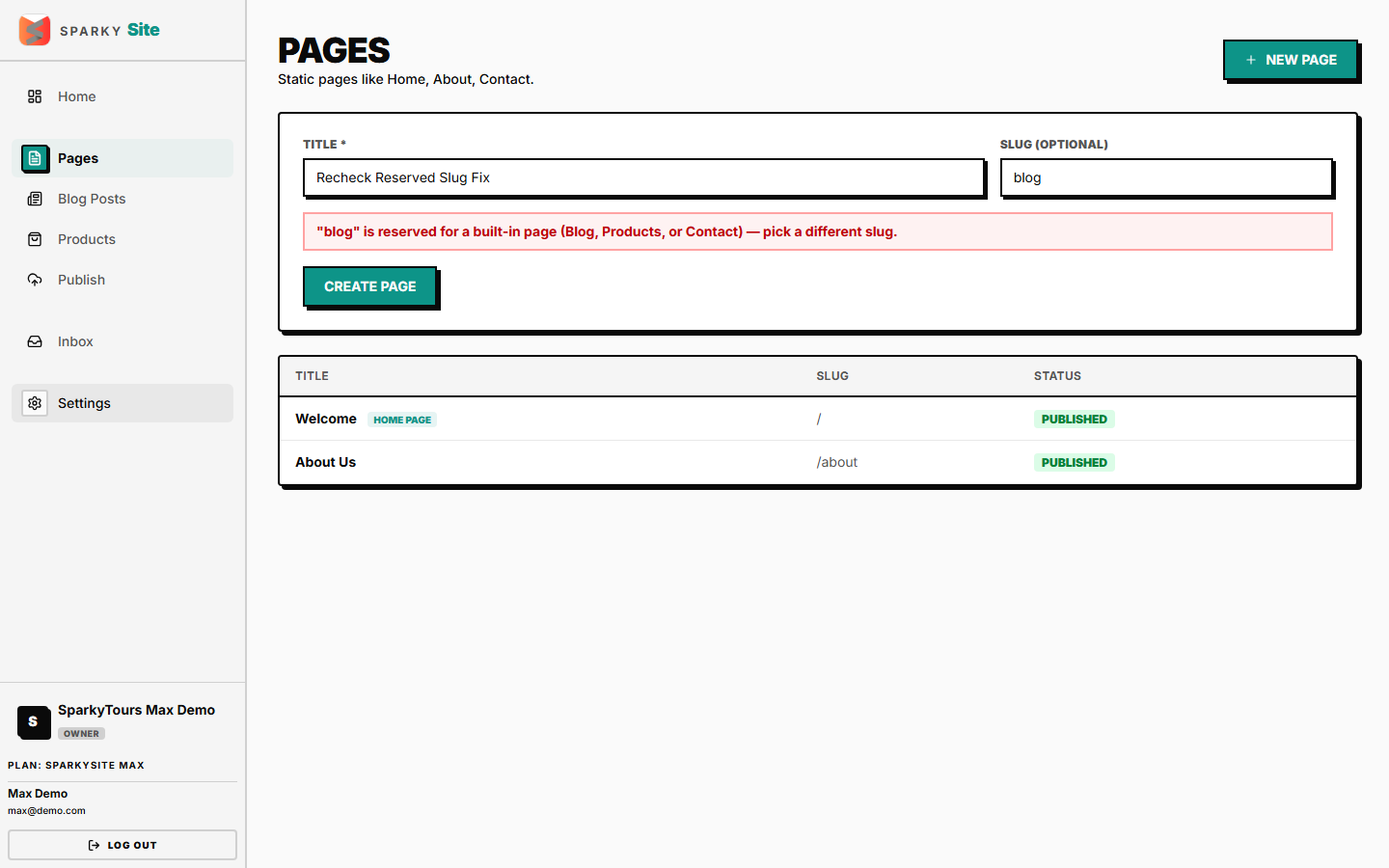
Click "New Page," give it a title (and optionally a custom slug/URL). You can't use a slug reserved for a built-in page (Blog, Products, or Contact). If your plan has a page limit, creating past it is blocked with an upgrade prompt.
How to edit a page
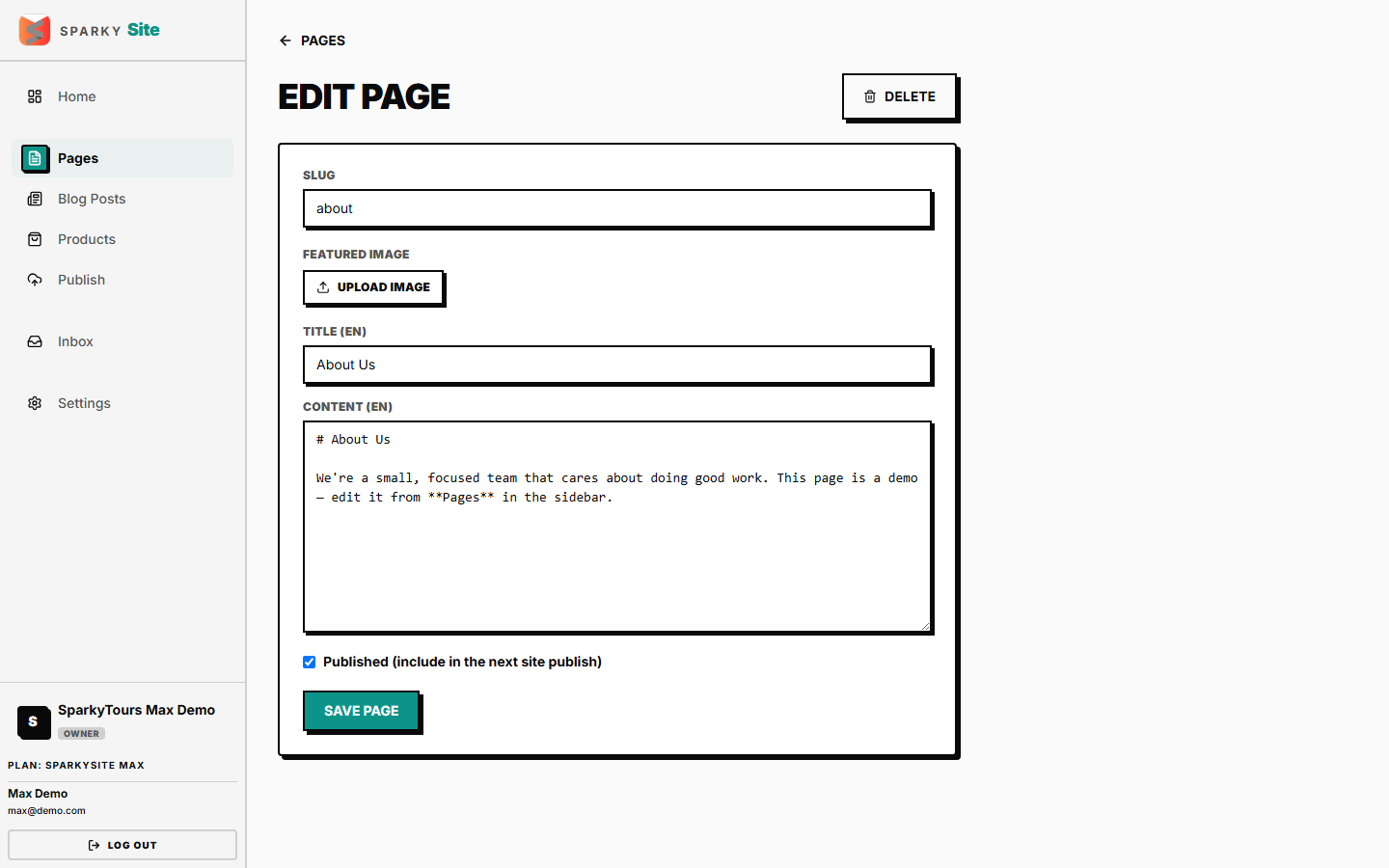
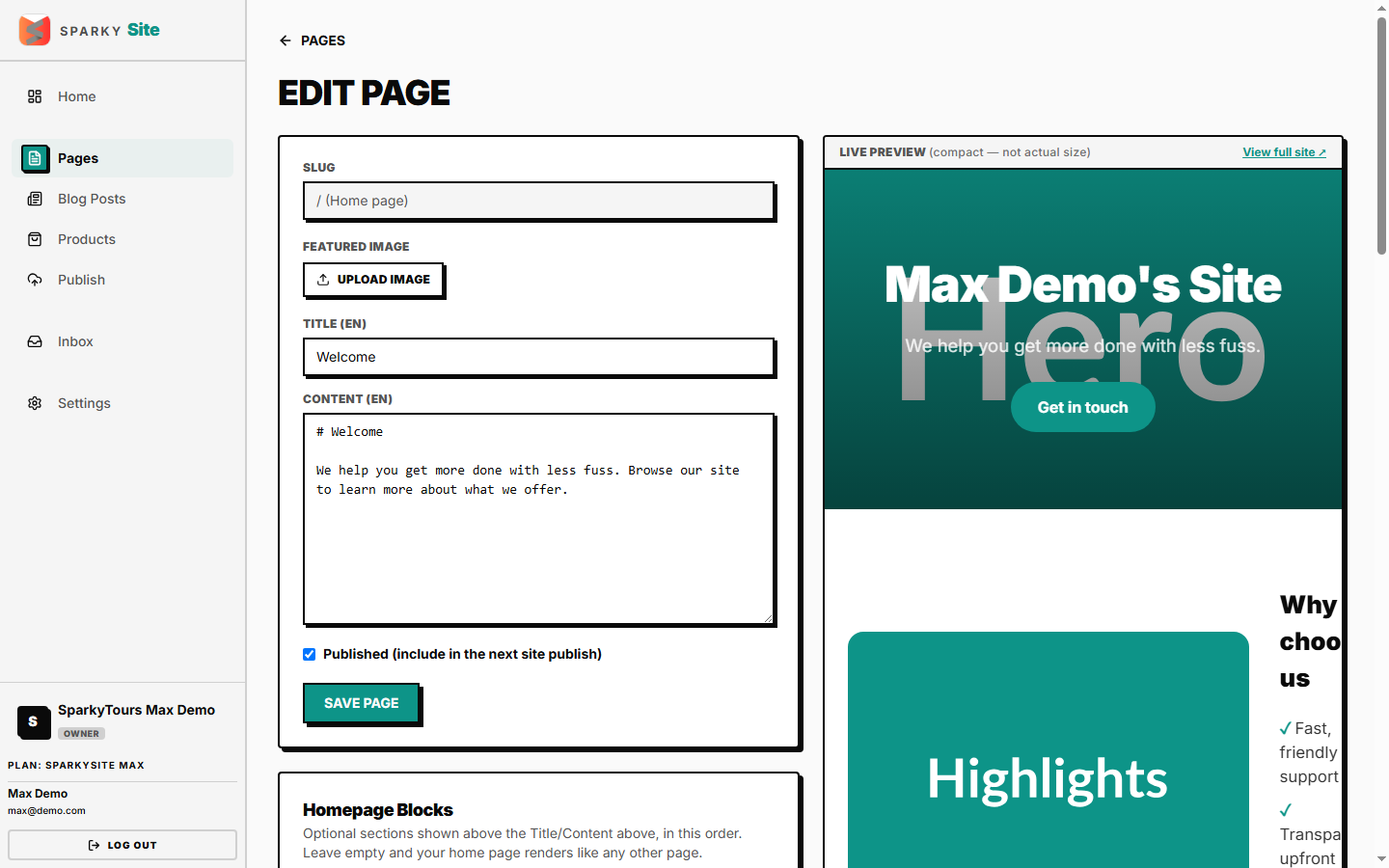
Open a page to edit its title and content, per language if your site supports more than one, plus a featured image.
How to build your home page from blocks
Your home page works differently from every other page — instead of one block of freeform content, you build it from a stack of section blocks: Hero, Highlights, Features, Testimonial, FAQ, Rich Text, and a call-to-action (CTA). Add a block, reorder it up or down, or remove it; a live compact preview next to the editor updates as you go, and a "View full site" link opens the real, full-size public page. Block changes save together with the rest of the page — click Save Page to keep them.
How to publish a page
While editing, set a page to Published so it appears on your live site (or back to Draft to hide it) — only if you have publishing permission; otherwise your content edits still save, just without changing its published state.
How to delete a page
Delete a page you no longer need, then confirm. Your home page can't be deleted this way — clear its content or blocks instead, since every site needs one.